
Ferris Sweep QMK Keymap
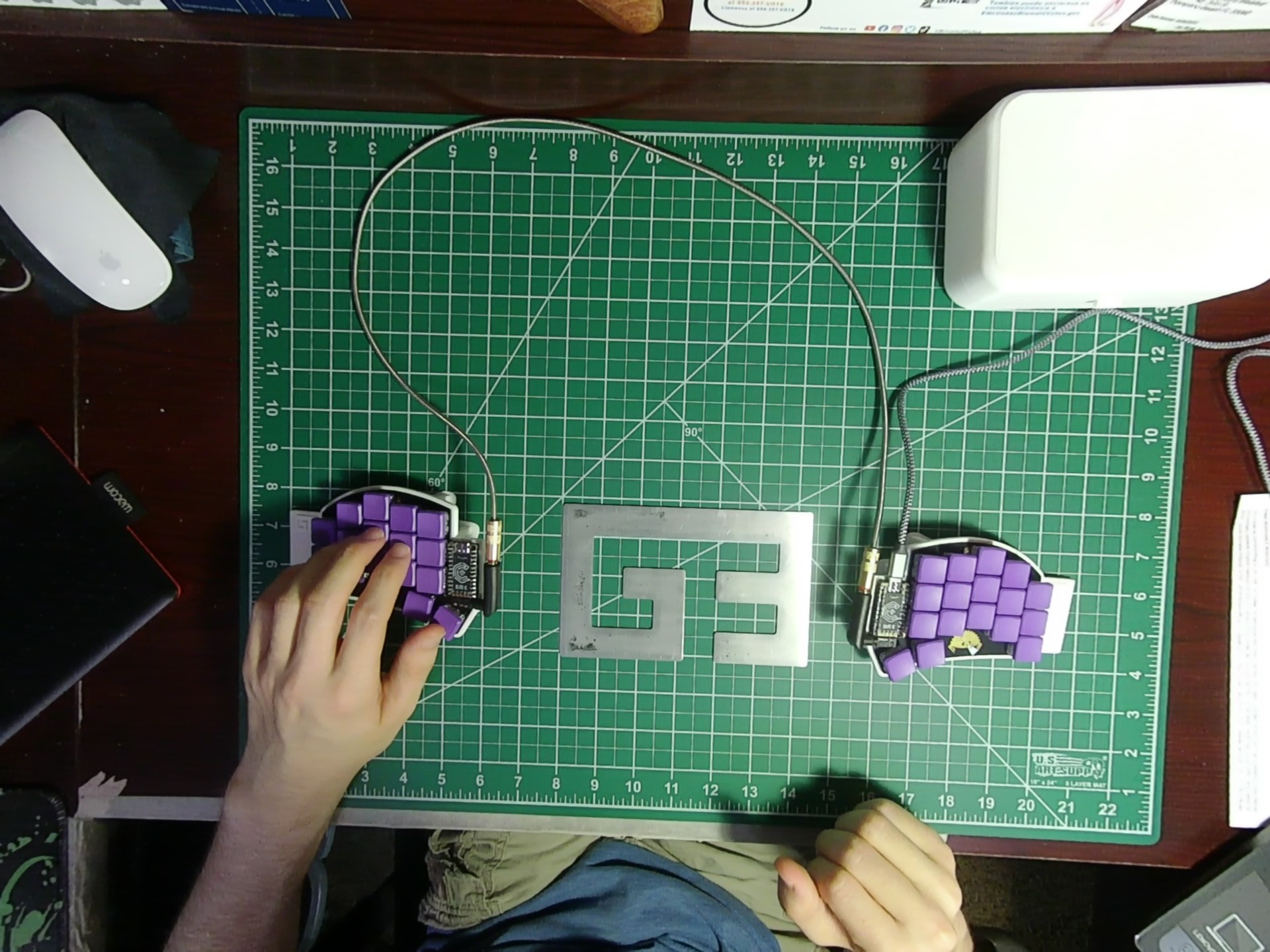
I had heard about mechanical keyboards for years and had always been interested in them, but I was fine with my memchanical for years and could never overcome that rest state. It was only in the last couple of year I started to hear about concepts like alternatives to QWERTY, split keyboard, and custom keymaps to make your keyboard do more. I first started by playing around with AutoHotKey, but last year one of my friends ordered several Ferris Sweep pcbs and I decided to dive into the deep end.
I ended up making a Ferris Sweep, learning Colemaks, and making a travel case so I could use the keyboard at work. I’ve effectively created a trap of my own making from which escape back to any regular keyboard will be difficult. To that end, I have gone through several variations of the keymap and I think it would be cool to talk about it here.
Ferris Sweep
Quick note on the ferris sweep. It is a split keyboard which I find infinity better than my old joined keyboard. I also use a 3d printed tenting sleeve and carrying case to take the keyboard to work. You can see them here in this video.
Colemaks
I decided to switch to Colemaks because it seemed more modern and usable than Davorak and Workmans, especially with keeping a lot of keys from QWERTY. I look a bit at Colemak-DK, but decided to go with standard because it was build into my Mac. I do feel the awkwardness of having G and D in the middle column and they are the source of most of my mistakes even still, but I’m OK with that for now and don’t really want to switch. My speed on TypeMonkey still isn’t as high as it was on QWERTY (~90 WPM => ~70 WPM) but I never really type at those speeds in my everyday life anyways. Overall, I’m really happy to have switched to Colemaks from QWERTY.
Vim
Something I was experimenting with was using vim and using it with my keymap. However, Vim only exists in a code editor, and I found that there were a lot navigation functions build into MacOS and Windows that I hadn’t been using, but could easily assign to key on my keymap. The most important one being control + arrow keys to skip words, which I made dedicated keys for on my navigation layer.
Ben Vallik
My first keymap was based on Ben Vallack’s Ferris Sweep keymap seen here. At first I really liked the idea of a key to rise through the layers, and a key to go back down to the first layer. However, I found the motion to go up to the second layer, then back down to bo to cumbersome.
My Layer Navigation Journey
After quickly ditching Vallik’s layer navigation scheme, I tried a very silly strategy. I used ctrl + the right side of the keyboard for my number pad, then a thumb layer key to get to navigation and symbol keys. But I quickly realized how many control keys I actually needed there.
Next attempt was to hold the thumb key for navigation, hold the right most lower key for numbers, and double tap thumb key to get to mouse. Left thumb would take me back to Colemaks and activate control, so that I could use any control quick key from wherever I am. This worked ok for a while until I broke my thumb key by slamming the double tap too hard and too much.
The final form made some compromises, but I like the outcome. Holding thumb key takes me to navigation. Control + hold thumb key takes me to the number pad. Shift + thumb key takes me to mouse. Control on mouse takes me back to Colemak.
Mouse Keys
I didn’t intend to replace my mouse, but I ended up liking using my keyboard as my mouse that I don’t use the separate one for much any more. At first, I tried the acceleration mode, but I found it too inaccurate. I ended up liking momentary constant mode. On the mouse layer, the center keys on the right become mouse arrow keys. The two right thumb keys become left and right click, with shift right click becoming middle mouse click. Two right keys next to the arrows become mouse 4 and 5. Holding a key on the left side makes the speed high, and another key makes the speed slow. This allows me to tap the speed I want to quickly and accuratly navigate. My finger was hurting from holding the slow key so much, so I moved it to a thumb key to replace shift which I wasn’t using much on this layer.
Symbols
I decided to pair symbols together in a way that makes more sense to me. For instance, on the navigational layer, I have <>, (), {}, and [] on the center left side. The plain key does the open symbol, and the shifted key does the close symbol. On the bottom right of Colemaks, shifted , becomes ; and shifted . becomes :. Tapping , and . at the same time gives ! and the shifted version is ?. The symbols +-_=/ are the bottom right row on the nav layer. The top left row on nav is $#*& and on numbers is %@^|. Similar symbols are on the same key like (& and |) and ($ and %). Shifted / is \. Function keys live on the bottom left of nav and numbers.
Common Keys
On most layers, top right is backspace (shifted gives delete), center right is enter, bottom left is alt, center left is tab, and top left is escape. For thumb keys, left is control, center left is shift, center right is space, and right is layer key. I also made several special cases to enable alt tab. On nav and numbers, alt < becomes alt tab. On Colemaks control shift g becomes alt tab.
Combos
I recently added some left hand one shot key combos with the z key. z + t is press and hold alt, z + s is press and hold windows, and z + r is tap escape. I chose these over holding keys to turn them into mod keys because that felt too finicky to me. Z is rarely typed next to these other keys so its unlikely that these combos will be used on accident.
Ever Evolving
I keep changing my map to meet new challenges and find better solutions. With things like my 3d printer, I’m not that much of a fan of tinkering; I just want it to work. But with this, I love to tinker and make my keyboard exactly how I want it. Here is the keymap on github.
Colemak Layer
| q | w | f | p | g | j | l | u | y | backspace | |
|---|---|---|---|---|---|---|---|---|---|---|
| a | r | s | t | d | h | n | e | i | o | |
| z | x | c | v | b | k | m | , | . | ‘ | |
| ctrl/win | shift | space | layer |
Naviagion Layer
| esc | $ | # | * | & | pg up | word left | arrow up | word right | backspace/del | |
|---|---|---|---|---|---|---|---|---|---|---|
| tab | <> | () | {} | [] | pg down | arrow left | arrow down | arrow right | enter | |
| alt | F10 | F11 | F12 | `~ | + | - | _ | = | / | |
| ctrl/win | shift | space | layer |
Number Layer
| esc | % | @ | ^ | | | - | 7 | 8 | 9 | backspace/del | |
|---|---|---|---|---|---|---|---|---|---|---|
| tab | . | , | / | * | + | 4 | 5 | 6 | enter | |
| alt | F1 | F2 | F2 | `~ | = | 1 | 2 | 3 | 0 | |
| ctrl/win | shift | space | layer |
Mouse Layer
| esc | scroll left | scroll up | scroll right | volume | mouse 5 | window left | mouse up | window right | backspace/del | |
|---|---|---|---|---|---|---|---|---|---|---|
| tab | fast move | scroll down | shift | pause/play | mouse 4 | mouse left | mouse down | mouse right | enter | |
| l control | l win | l alt | print screen | pause | r alt | r win | scroll lock | r control | n/a | |
| ctrl/win | slow move | left click | right click |